How To Use DiskPart Command To Recover Missing Or Unallocated Space On A USB Drive
The Problem with Unallocated space on USB drives
The problem here is that the freeware image burner completely changed the system partition on the USB drive and after the image was burned, all the unused space has been automatically unallocated. [ Some operating systems e.g Chrome OS requires that the source disk should not have any free space available and I am very sure that the Chrome OS image is the actual culprit which unallocated all the free space on my USB drive. ]
Now all you have to do is delete the existing partitions on the USB drive and recreate a new partition from Windows Disk management console.
While there are a lot of open source and free disk management utilities available, there is no need t use any of them. You can recreate the fresh partition using any of the following two ways:
- Use Windows Disk Management console to delete the existing partition, create a new partition and allocate the unallocated space
- Use Windows DiskPart command to delete all partitions in the removable drive and allocate all the unavailable space to a new parition.
I would follow the second method because it’s more easy and takes only half a minute.
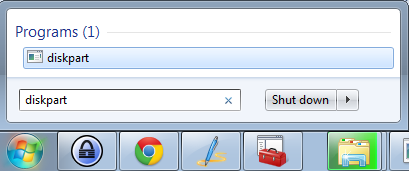
4. Click Windows start menu, type “Diskpart” and click the result to open the DiskPart command prompt window.
5. In the command prompt window, type list disk and hit Enter.
6. This will show the current hard drive as well as removable drive status of your computer. The removable USB drive or hard disk will be shown under Disk 1, as shown below:
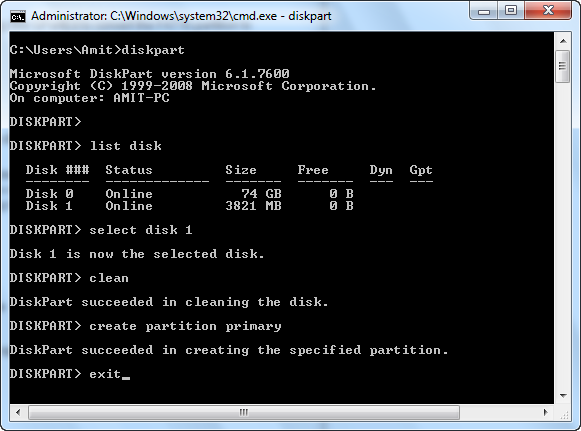
7. Next, type in the following commands one by one:
select disk 1
Clean
create partition primary
8. The first command selects your removable USB drive while the Clean command deletes all the current partitions present on the USB drive. Next, the “Create primary partition” creates a fresh partition and allocates all the unallocated space on this fresh partition.
9. When you are done, type Exit to close the command prompt window.
10. Done !